
6 · The DTH Export batch#
The DTH Export button in the character header runs the whole round trip unattended: every Daz scene you pick gets its ROM built and exported, the Houdini projects that read those exports run straight afterwards, and the result can be queued for re-import into a linked Unreal project. One run, one report.
The short version#
- Press DTH Export in the character header.
- Check the Daz scenes to run (the ones with outstanding work are already ticked) and leave the Mode on ROM + Export.
- The Houdini projects that read those scenes are already ticked too — and so is any Unreal project the run would refresh.
- Press Start. The panel closes and the run reports in the character header.
That is the whole thing. The rest of this page is what the individual choices do.
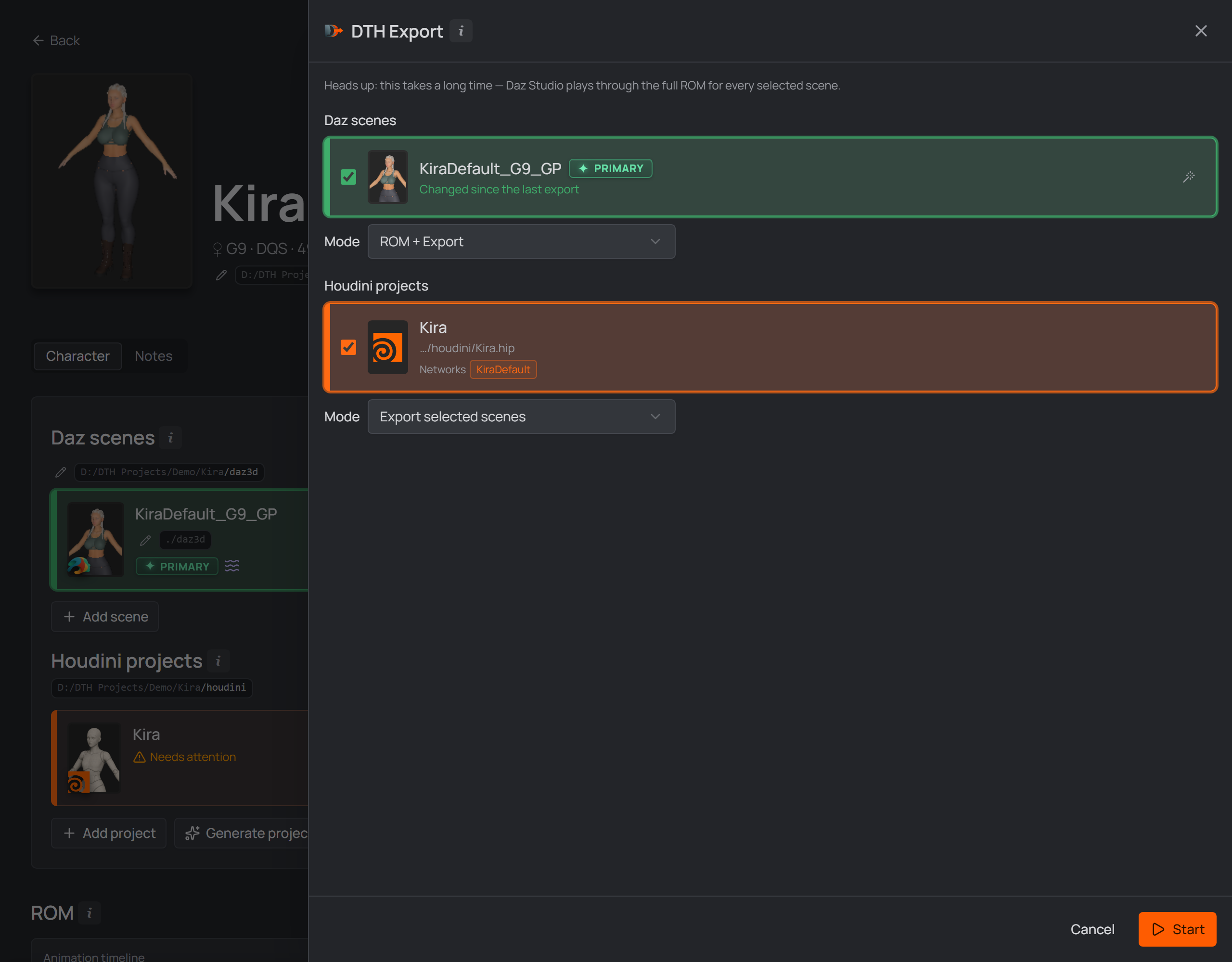
Pick the Daz scenes and their run, then the Houdini projects that carry on with the results.
Daz scenes#
Every linked scene is listed; the ones with outstanding work come pre-checked (the wand picks a single scene, a double-click selects all). The Mode decides what their run does:
| Mode | What runs |
|---|---|
| ROM + Export | the full run — a fresh ROM, the saved ROM animation scene, and the export of everything (skeletal mesh and hair) |
| ROM only | build the ROM and save the rom-animations scene; no export |
| Export only | export the saved ROM animations as they stand, without rebuilding. Pre-selects the scenes whose ROM animation is newer than their last export; skips scenes that have none |
| Hair items only | export each scene's hair items alone, one Alembic each — no ROM, no mesh, no CSV, and no saved ROM animation needed. Lists only scenes with Export hair items switched on |
| Skip Daz — use last exports | nothing runs in Daz — the Houdini projects work off each scene's last export on disk. Scenes that never delivered an export are kept out, and one whose export didn't land (a crashed run leaves a 0-byte .dth) is refused by name |
Houdini projects#
The character's linked projects, pre-selected whenever scenes are — so a plain
Start does the whole round trip. Untick them and the run ends with Daz. Their
own Mode is either Export selected scenes (the default) or Skip Houdini
— use last exports, which hands the exports already on disk to the Unreal
projects below (offered only when the studio project has a linked .uproject).
Each row names what that project contributes. A Houdini row's Networks
chips are the export sets it writes — a .hip holding two DazToHue networks
shows two, so the size of the run is visible before you press Start. The Unreal
rows chip the Characters they would receive. A project the background scan
hasn't reached yet shows none, which means not known rather than "writes
nothing" — Rescan it and the chips appear.
The project list follows the scene selection. Untick a Daz scene and the projects that only import that scene leave the run with it — matched on the import path, the same one Houdini uses at export time, not on names. A project the background scan hasn't reached yet keeps whatever you set.
Several selected projects run one after another. ROM only is the exception: it builds no fresh export, so the projects don't pre-select and the export mode is disabled.
To just open a Houdini project, use the open button on its card — this panel runs the pipeline.
Unreal projects#
The third leg, shown once the studio project has
linked .uproject files. Tick one
and the finished export is queued for import when the whole run ends: the job
is a file, and the project's
DTH Character Studio Runner picks it up
whenever that editor is next open — the studio opens the project for it if nothing
does.
The run is not over until the editor answers. Writing that job file takes a moment; the import behind it takes minutes. So the report waits for it, and the import's outcome — with the time the import itself took — is the report's last line. Nothing waits when there is nothing to wait for: a send that was refused, or a run with no Unreal project ticked, reports the moment its export legs are done.
The project is the only thing you tick. Which export sets go is worked out from what the checked Houdini projects write (or, under Skip Houdini, from what is on disk), and the run's task list names every set with the project it lands in.
The send is re-import only, so a project that already holds one of this run's sets starts ticked. A project holding nothing this run makes goes inert and says so: a character's first import is made in Unreal itself, and that is where you decide where it lives. A Houdini project the background scan hasn't reached yet says nothing about what it writes, so nothing is pre-ticked — send it anyway and everything in the export folder that project holds is re-imported; Rescan it (Utils drawer) and the run sends only what it makes.
Start#
Press Start: the panel closes and the batch is handed to Daz Studio, where the bundled Runner plugin works through it unattended — each scene in its own fresh Daz session, opened where you can see it. Daz quitting and reopening between scenes is the run working, not crashing. A Daz already open with a scene loaded is closed before the first scene runs.
The panel refuses to start while the Runner plugin is missing or older than the one bundled with the app; the notice links straight to Settings. A skip-Daz run doesn't need the Runner at all.
Watching the run#
The character header becomes the run's display for as long as it lasts.
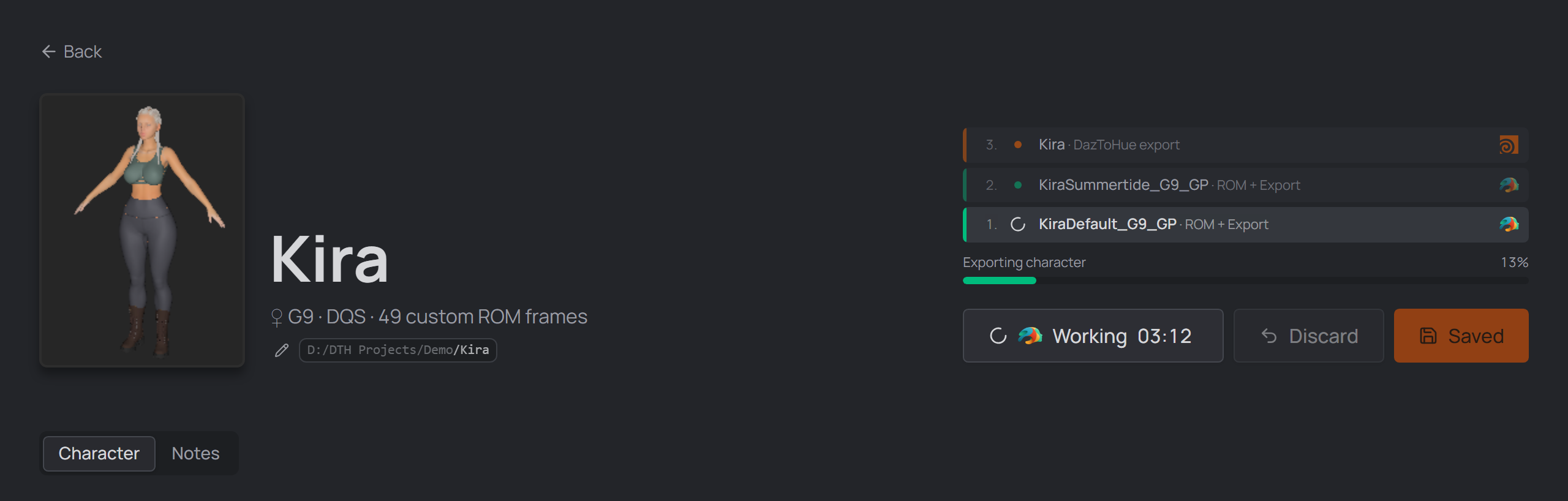
The live pipeline: one list of what the run does, and how far through it is.
- One task list, numbered in run order and stacked bottom-up like a log,
with one row per job: every selected Daz scene, every DazToHue
network (not merely every
.hip— a project holding two networks is two rows), and every export set going into an Unreal project. A finished row is ticked, then retires so the work still ahead stays in view — a failed row never does. Numbering counts the whole run, so a row's number never changes. - One progress bar underneath, with the newest thing the run said printed on it. Only the newest line is shown; each leg's full output stays on disk (the Runner's progress log, Houdini's console log, Unreal's own).
The button beside it reads Working with the elapsed time. Nothing is announced
mid-run: one report at the end covers every leg, with any per-scene failures and
the total time. The end is the last leg's answer — with an Unreal project
ticked, that is the editor's, minutes after the export itself finished. A run that produced nothing is never reported as a success —
the report also reads the character's own ROM run log, so a scene that failed
mid-ROM is named as a failure, and when nothing survived the Houdini and Unreal
legs are held back. It checks the export folder too: a Daz script the
exporter kills mid-export still returns cleanly, so a missing or 0-byte .dth is
what gives it away. Such a scene is reported as “the Daz export did not land”
and dropped from the Houdini leg, rather than cooked into a green tick. A morph that could not be applied deliberately does
not count: its frame stays in the ROM (empty) and the export still runs.
Interrupting#
Hover the Working button while a run is live and its spinner becomes a stop mark — Click to interrupt — through both legs:
- The ROM build stops where it happens to be, and the export that would have followed is skipped, along with every scene still queued.
- The Houdini leg stops between export nodes and closes its background Houdini; projects still queued never start.
- The report says DTH Export interrupted, never "n scenes exported" — after an interrupt the studio can no longer tell a scene that exported from one that was skipped. The ROM run log names the scene that was cut off.
What is already written stays. The interrupt cannot cut short a call already running inside Daz or Houdini, so the button can sit at Stopping for a while. Before Daz has picked the batch up at all it reads Abort instead.
If a run is stuck rather than running — Daz sitting on a dialog, or a batch this window is only showing — nothing is left to read the interrupt. Settings → App Data clears the stuck batch handoff, so the next export isn't refused with "a batch is waiting for Daz Studio".
Reloading the app doesn't lose the run — the character's editor picks it back up when it opens; any other window shows the same run read-only.
Carry on into Houdini#
With Houdini projects selected in an exporting mode, each project runs its own DazToHue exports for the scenes in scope, right after the Daz batch delivers (or immediately, with Skip Daz).
- Daz finishes the batch and the Houdini leg starts straight away — the report waits until the whole round trip is done.
- Houdini runs the project headless:
hythonloads it in the background, works the batch and exits. No window opens; the header's task list is where you watch it. - Only the networks importing the scenes you ticked export. A project holding networks for other scenes — or other characters — is left alone.
- After the last project, one report names every leg — "Daz: 2/2 scenes exported in 3m 10s", then a line per Houdini project.
Two things it deliberately won't do: overwrite an export directory you configured (only a blank one is filled in from the run), and save the project (any parameter it touches is put back afterwards). If the DazToHue pre-flight check reports problems, the studio answers its "Continue anyway?" prompt and keeps the message, so those problems reach the report.
Everything Houdini printed lands in .dth_houdini_console.log in the character
folder — one file per character, overwritten by that character's next run, and
deliberately not cleaned up with the run's other files. A headless run that dies
without a word is reported as Houdini exited during its last step, with
hython's exit code: a negative one (0xC0000005) is a crash inside Houdini, not
a studio failure.