
Custom morphs#
A ROM section in Preset mode runs a DTH release asset as it ships. Switch it to Custom and you list the morphs yourself. This page continues Your first character.
Each pose row has two name fields with very different jobs:
- Name — your name for the generated morph; it travels to Houdini and later Unreal Engine. Letters, numbers and underscores only — Houdini rejects anything else. The group's Left/Right suffix is appended automatically.
- Parameter name — must exactly match the parameter's internal name in Daz Studio (not its display label), or that frame fails in the ROM run.
Import from an existing Daz scene#
A section already posed on a Daz timeline doesn't have to be typed in again.
Import from Daz scene reads those keyed frames and turns each one into a pose
row. Click it, then pick a scene — or drag the Start scan hands the scene to Daz Studio — the same job runner DTH Export uses, so it needs the Runner plugin. Daz opens the scene, scans it with no dialogs and clears it again; if Daz wasn't running it is started minimized. Scans you already made stay listed in the same dialog, newest first — one scan of
a scene can feed several ROM sections. Browse takes any CSV you curated
yourself, and running An import fixes the names for you. Daz property labels are prose, so
|
Several Daz morphs in one row#
A pose row can drive its one output from several Daz morphs at once — expand its morphs toggle.
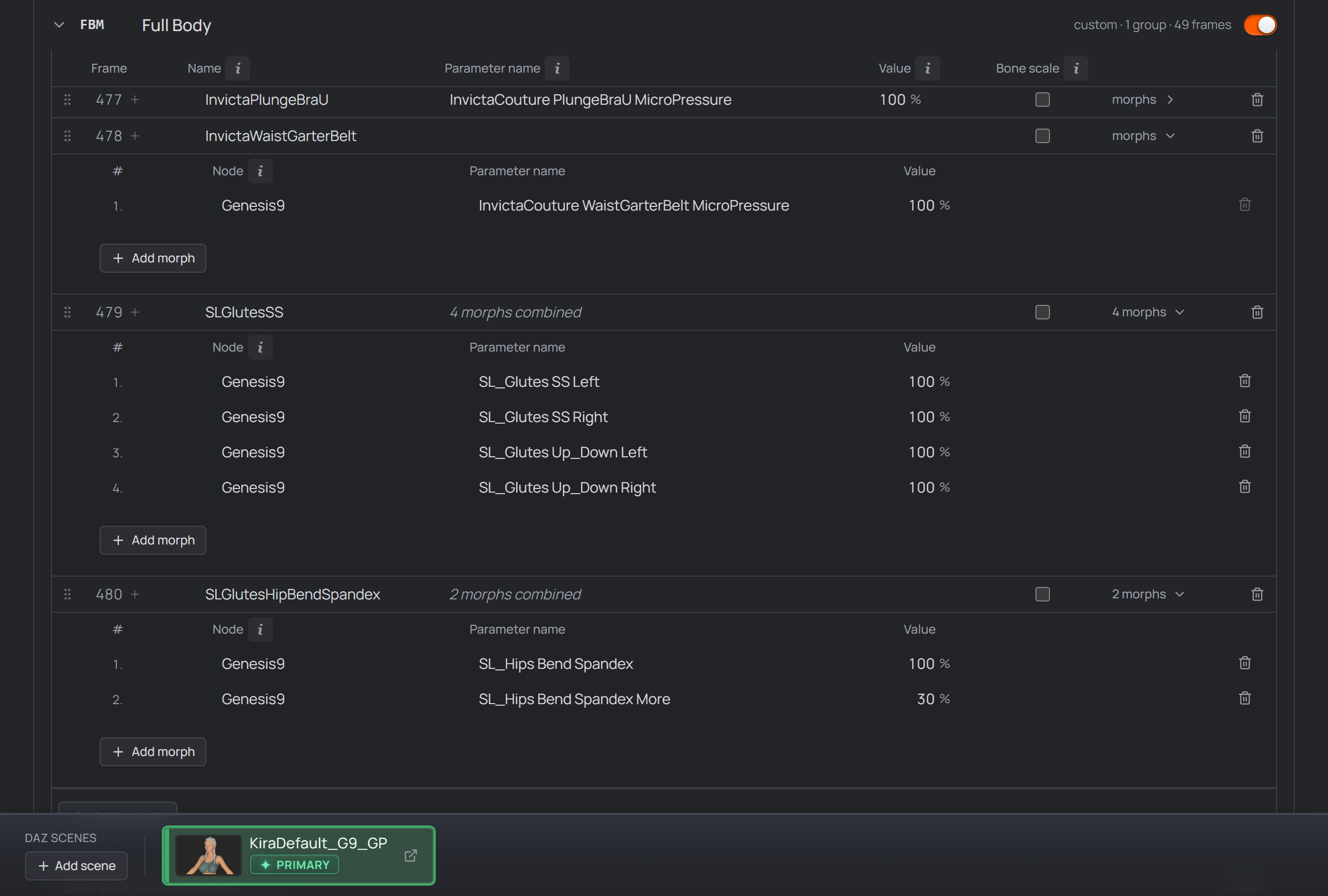
Expanded pose rows — a plain single-morph row on top, and two rows combining several morphs into one output below.
Every entry in that list carries its own:
- Node — the scene node the morph lives on (
Genesis9,GoldenPalace_G9, a bone, …); autocomplete fills it in when you pick a suggestion. - Parameter name — the morph's internal Daz name.
- Value — what this morph is dialed to at the pose's frame.
- Base (optional) — the value the morph returns to on the frames around
the pose (default
0). Only read when Auto is off. - Auto — on by default. Reads the base from the morph's current scene value when the script runs.
Why Auto is on by default. ROM morphs and base-shape morphs are allowed to overlap. With Auto on, a morph the open scene already dials to 100 % sawtooths back to that value around its pose instead of being flattened to
0— so the ROM stops erasing the base shape. A morph the scene does not dial reads0anyway, so for most morphs Auto changes nothing.
Combining several morphs into one output — why you'd do it#
Combining bakes a shape that only exists as a combination of dials — or a controller plus its corrective — into a single clean morph for Houdini and Unreal: all the listed morphs are keyed together on that one frame and blend into the output named in Name. Add morph adds more; the trash icon removes one (a pose always keeps at least one). |
Bone scale — morphs that scale bones (reference skeletons)#
Some morphs also scale bones (Torso Length, Proportion Height…). Generated morphs can only move vertices, and Daz's FBX export doesn't carry bone scales — the body would reshape while the skeleton stays put. Such frames need a reference-skeleton FBX, which the Houdini PoseAsset points at for that frame (its Reference FBX File input). Tick Bone scale on the pose row and the studio handles it end to end: the frame
is handed to the DTH Exporter Plugin, which writes the FBX into a
Note Bone scale only acts when the export actually runs. Building the ROM alone
leaves a ticked Bone scale a no-op — the reference-skeleton FBXs are written by
the export. Run Only GEN and FBM poses can be reference frames — the two categories DazToHue supports reference skeletons in. DTH's own Guide To Creating Custom ROMs describes the feature in depth. |

Section & group tools — suffixes, mirroring, reordering, inserting#
Each section header has its Enable switch and Mode select. In Preset mode
you can pick the exact DTH release asset when several match; a red no G9
asset chip appears when the active release ships nothing for it. The JCM
section's Custom mode takes a path to your own pose preset ( Grouped sections carry per-group settings in their header:
Inside a group, drag rows to reorder (frames simply renumber) and the small + next to a frame number inserts an empty pose before or after it. |
Finding the internal Daz name#
The Parameter name is the parameter's internal name, which usually differs from
the slider's label (label Body Tone → internal body_bs_BodyTone). The
comfortable way is the studio's autocomplete: one unattended scan (Tools →
Scan & index) covers every generation, and from then on each Parameter name field
suggests matches as you type — searchable by internal name or Daz UI
label, filling in the exact internal name and the right node.
Left: a morph's internal name differs from its slider label. Right: the manual route via Parameter Settings.
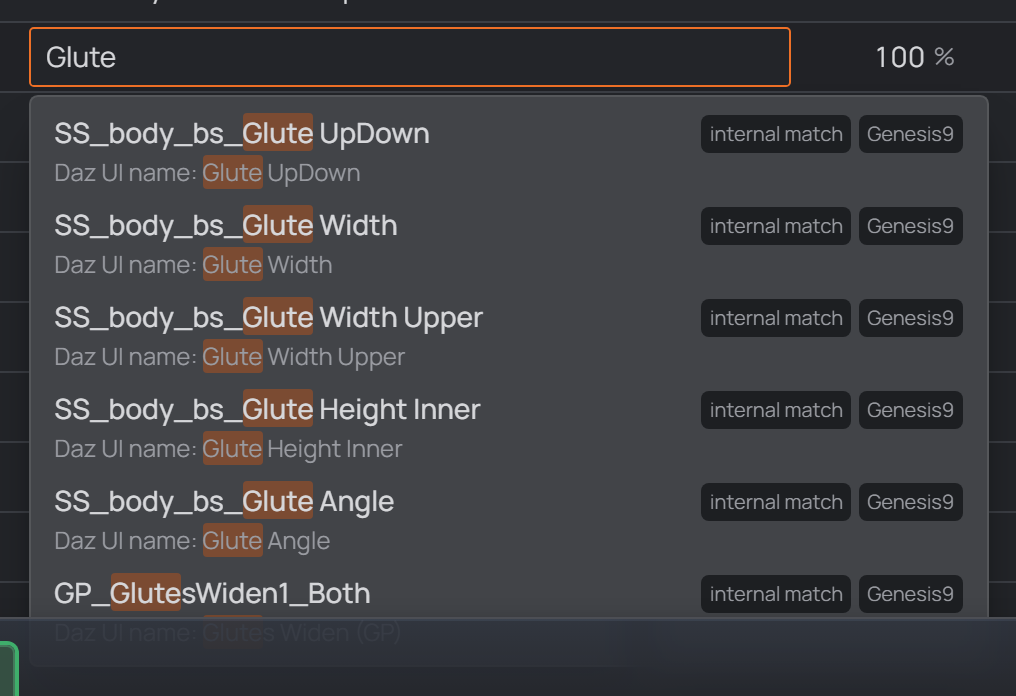
Each Parameter name field autocompletes from the scanned index.
Building the index — Tools → Scan & index#
Open Tools → Scan & index → Scan project, tick what you want and press Start scan. The studio hands Daz Studio one batch and works through it unattended.
Running it by hand. The runtime installation also puts the base build into
your Daz library as
It confirms which generations it found, builds the stock figures one at a time, finishes on an empty scene, and summarizes what was indexed per generation. With figures already loaded it offers to scan the open scene instead (that path never clears anything), and if that scene is saved it asks how to file the finds: For this scene or into the base index.
|