
Attachments#
An attachment is a reusable file that isn't a character but that you keep organized inside a project alongside its characters. Two kinds:
- a Daz scene (
.duf) — a base figure, a prop, an outfit, a look you start from - a Houdini template (
.hip) — a ready-made skeleton or material + texture-baker setup that the Utils drawer copies from
Think of it as a labelled shelf plus a one-click "open this in Daz" button, not a character generator — adding an attachment does not create or pre-fill a character.
Enable it#
Attachments are off by default. Open Settings → Project (the tab only shows inside a project window), turn on Enable attachments and Save — an Attachments tab then appears beside Characters, and the "Add" panel gains a Character / Attachment choice.

Enable attachments in Settings → Project.
Houdini templates#
Pick Houdini template in the Add panel and choose (or drop) a .hip. Give it a
name and a description — "G9 skeleton, UE5 twist bones" — and it becomes a
one-click source in the Utils drawer.
A Houdini template is always linked, never copied: moving a Houdini project
safely needs every reference to be relative and its $JOB to travel with it,
neither of which can be verified from here.
Add an attachment#
On the Attachments tab, press Add and fill in:
- Choose Daz scene… — pick the
.duf. The rest of the form appears once a scene is chosen, with a thumbnail preview. - Name — auto-filled from the file name; editable.
- Description (optional).
- Copy into the
.assetsfolder (on by default) — with an optional Subfolder, and Delete the original after copying to make it a move. Turn the copy switch off to link in place.
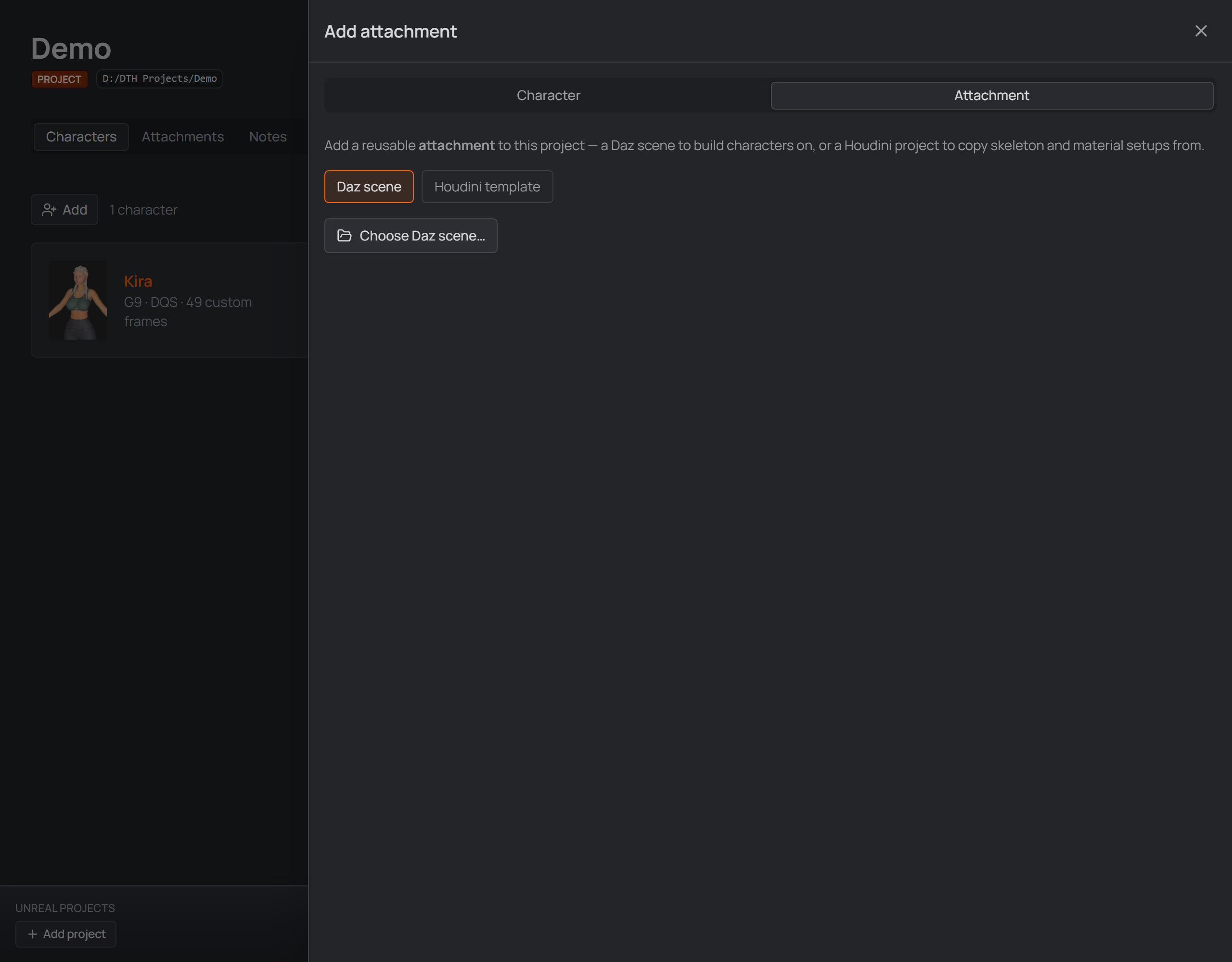
The Add attachment panel with its scene thumbnail preview.
| Copy (default) | Link | |
|---|---|---|
Where the .duf lives |
duplicated into the project's .assets/ |
stays where it is |
| Portable with the project | ✅ yes | ❌ points at an external file |
| Removing the attachment | deletes the copied .duf (optionally kept) |
never touches your original |
Each card shows its thumbnail (from the scene's .tip.png/.png sidecar, or the
name's initials), its name and description, a storage badge, and two actions:
Open scene in Daz and Remove attachment.
Open scene in Daz is the only in-app action (Daz must be the registered
handler). From there you work in Daz as usual: dial your character on top of the
base, save a new .duf, and back in the studio Add character pointing at it.
On disk#
Everything lives in a hidden .assets/ folder inside the project —
assets.json is the registry, and copied scenes and their thumbnails sit beside
it. There is no global/shared attachment library: attachments belong to one
project only, and changing the project's characters subfolder never touches
.assets.
.duf scenes only. The adjacent Show the Daz Products tab switch is a separate
feature — see Daz product scanning.